WiiUDownloader for WiiU
Downloading the game
- Do NOT forget to download the update for the game if it's available, or it will not work (e.g., Breath of the Wild). DLC is optional.
- Do NOT click "Decrypt Contents" and "Delete encrypted contents after decryption" as this will make the files UNUSABLE by the Wii U.
- Make sure you download and install NUSSPLI from here before moving forward.
-
Only have the WiiU box checked during setup.
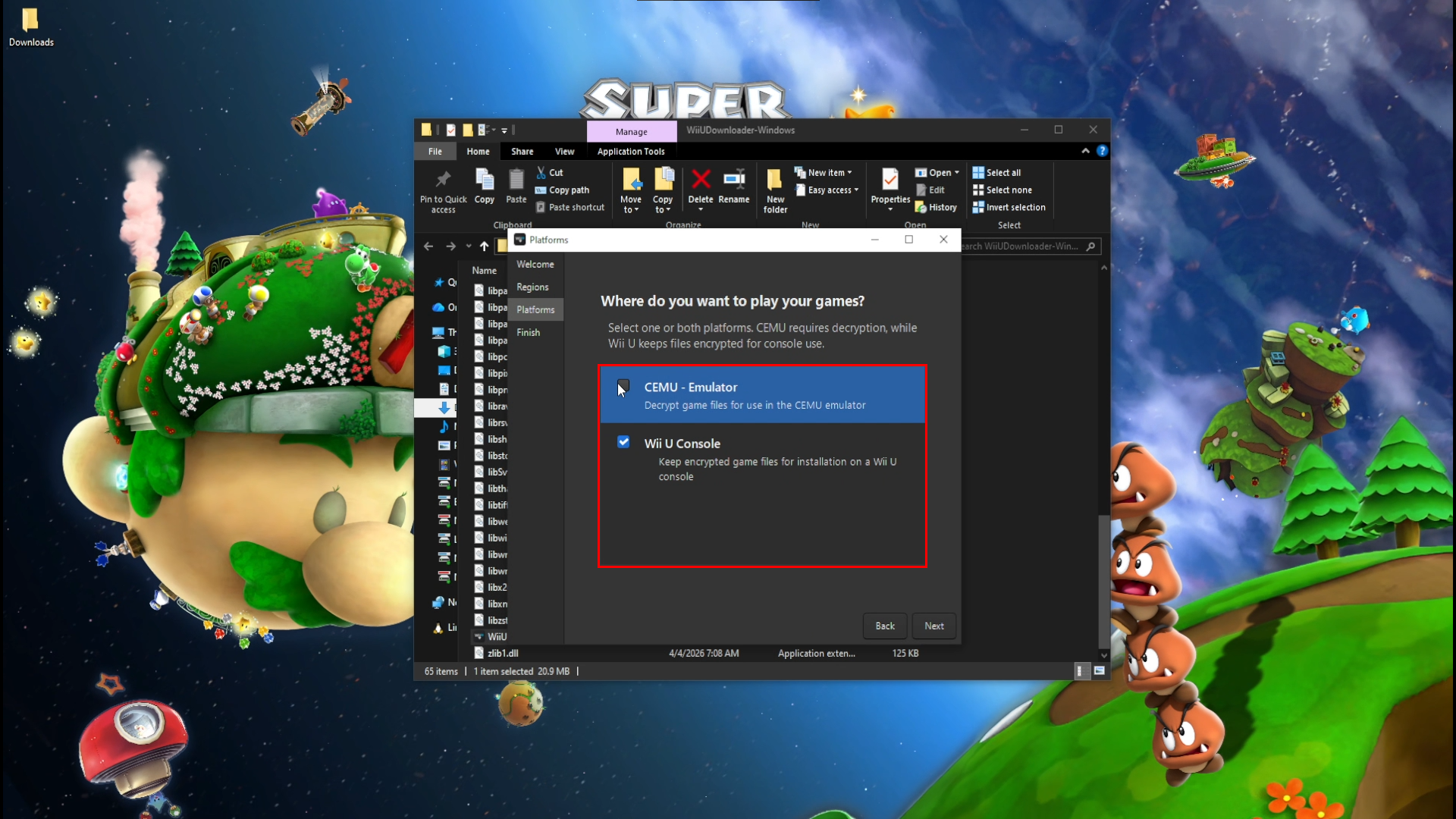 info
infoIf you forgot what you picked for the platform box, here are the settings you need to edit for Decrypt Contents and Delete encrypted contents after decryption.
- WiiU Only: Do not check any boxes.

- WiiU and Cemu: Only check the Decrypt Contents box. Do NOT check Delete encrypted contents after decryption.

-
Search for the game(s) you want.
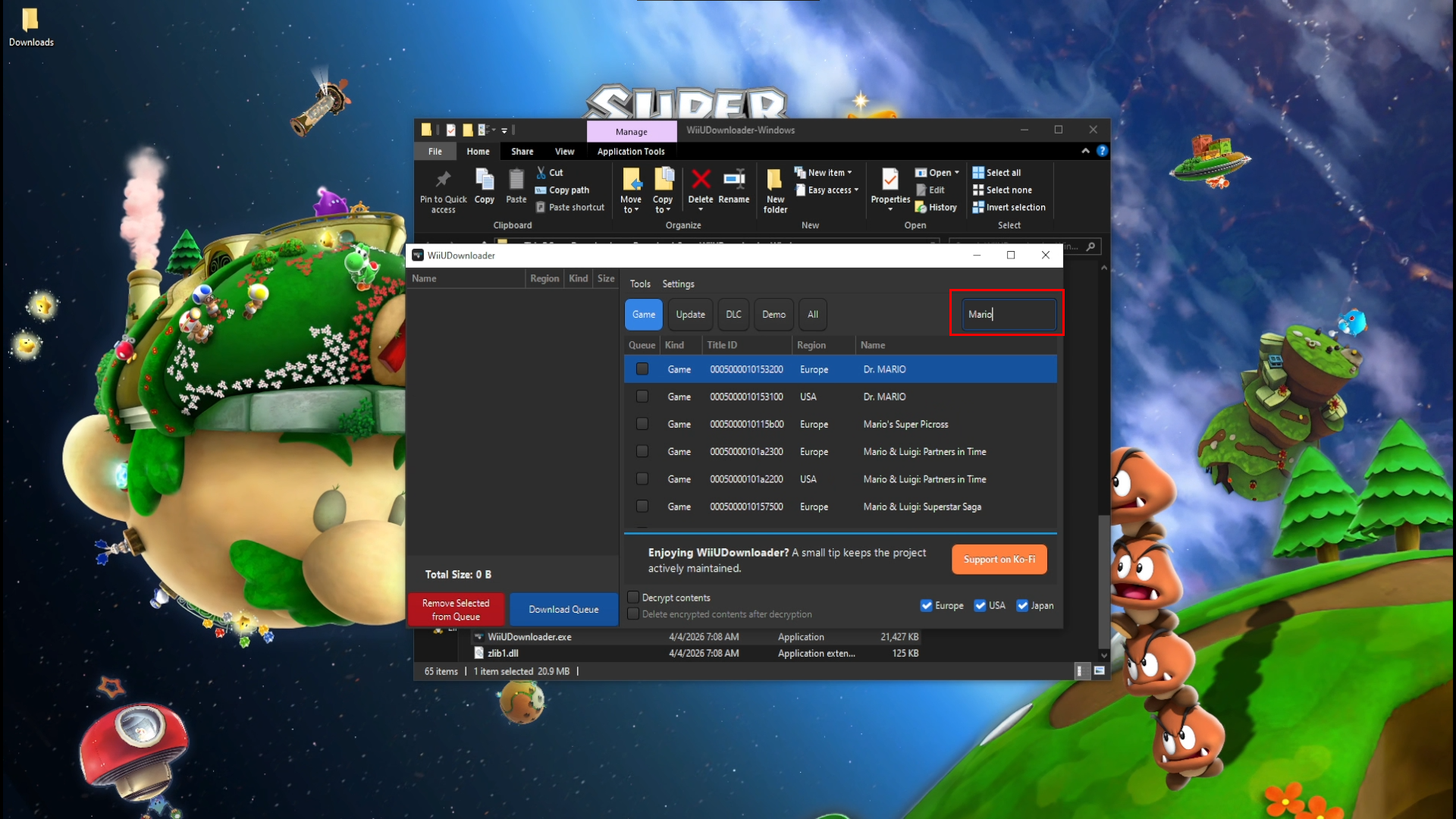
-
Check the checkmark box on the game(s) you want to add to the download queue
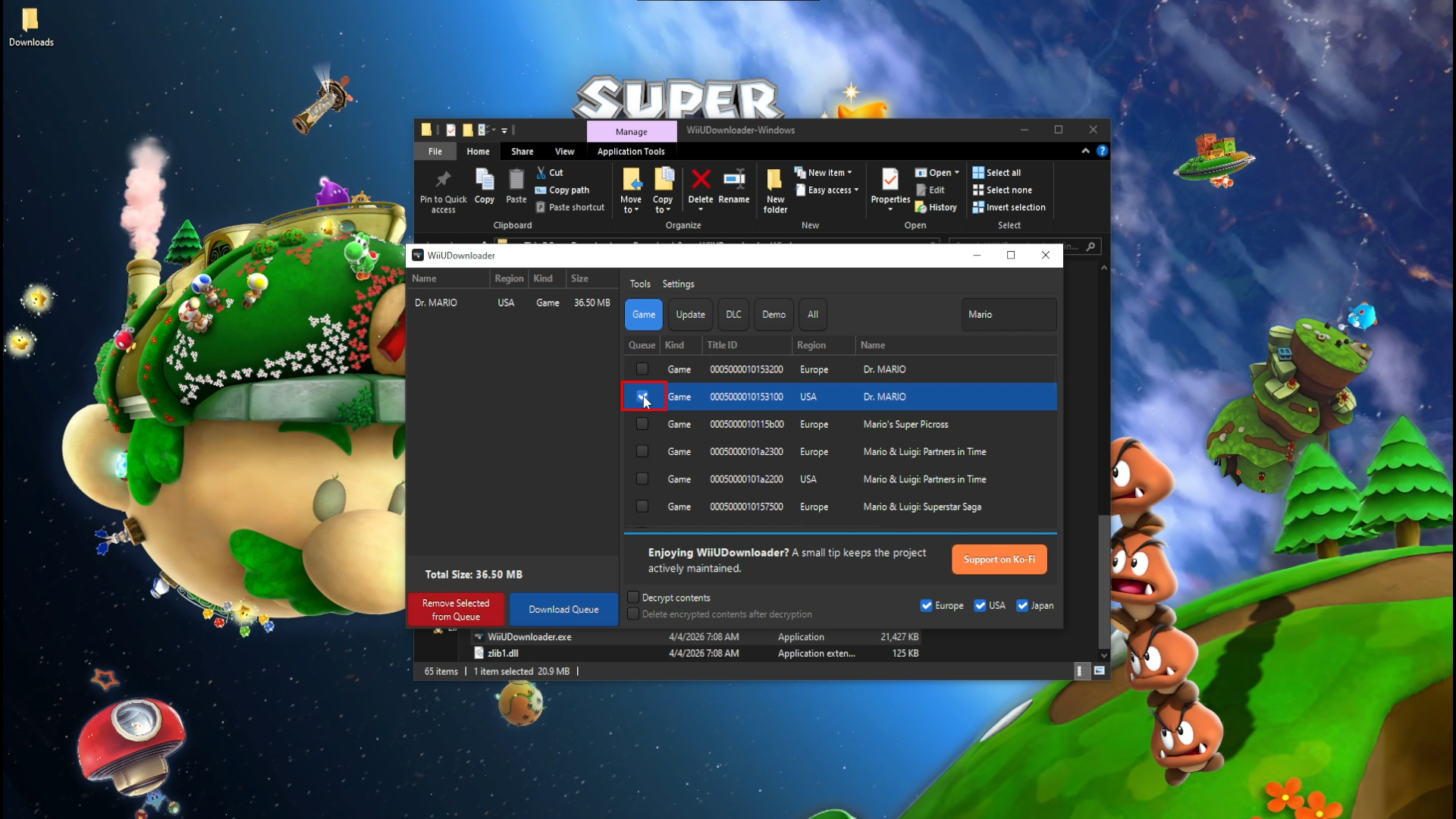
-
Press Download Queue.
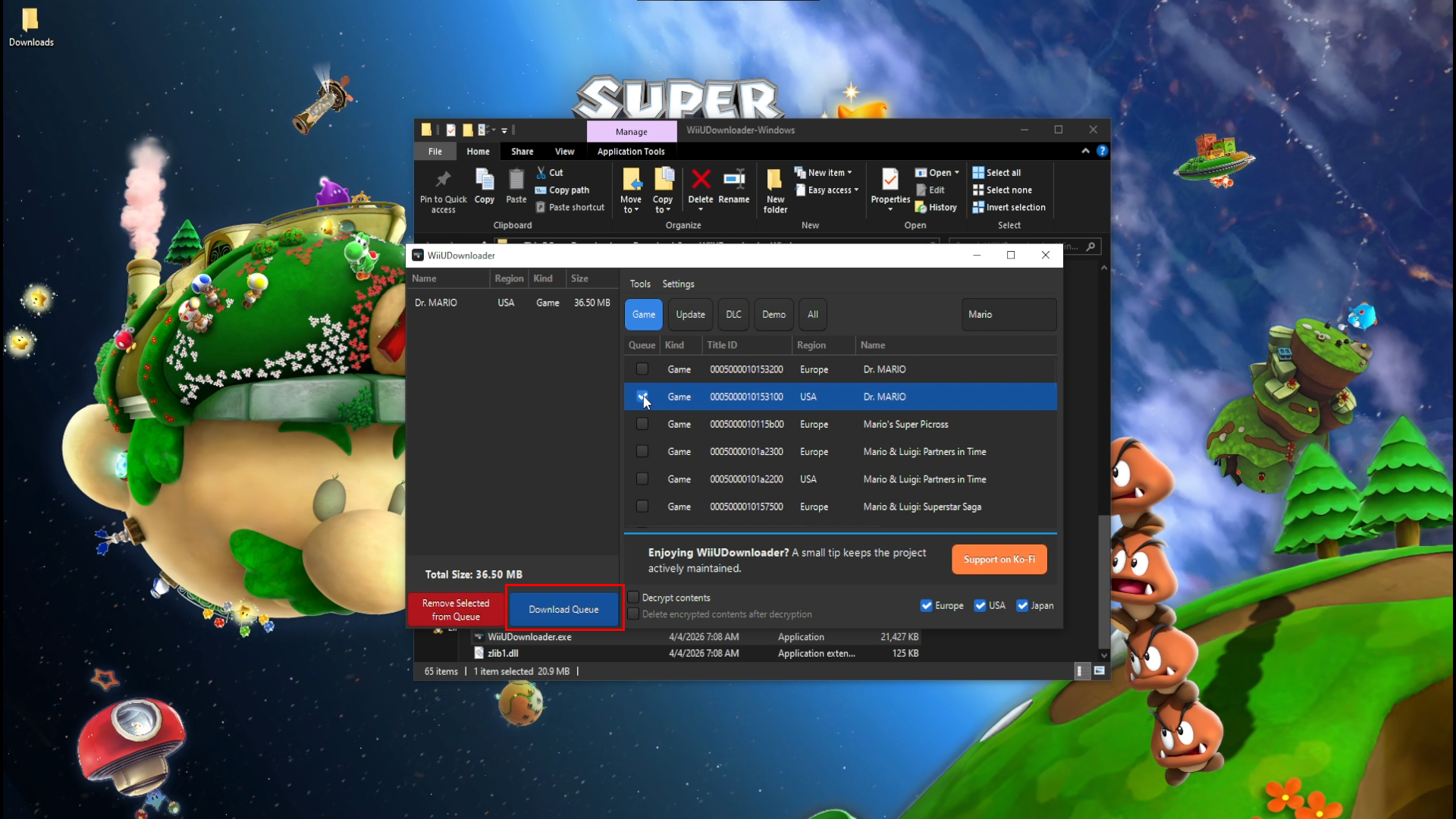
-
Choose where you want to save the files and click OK.
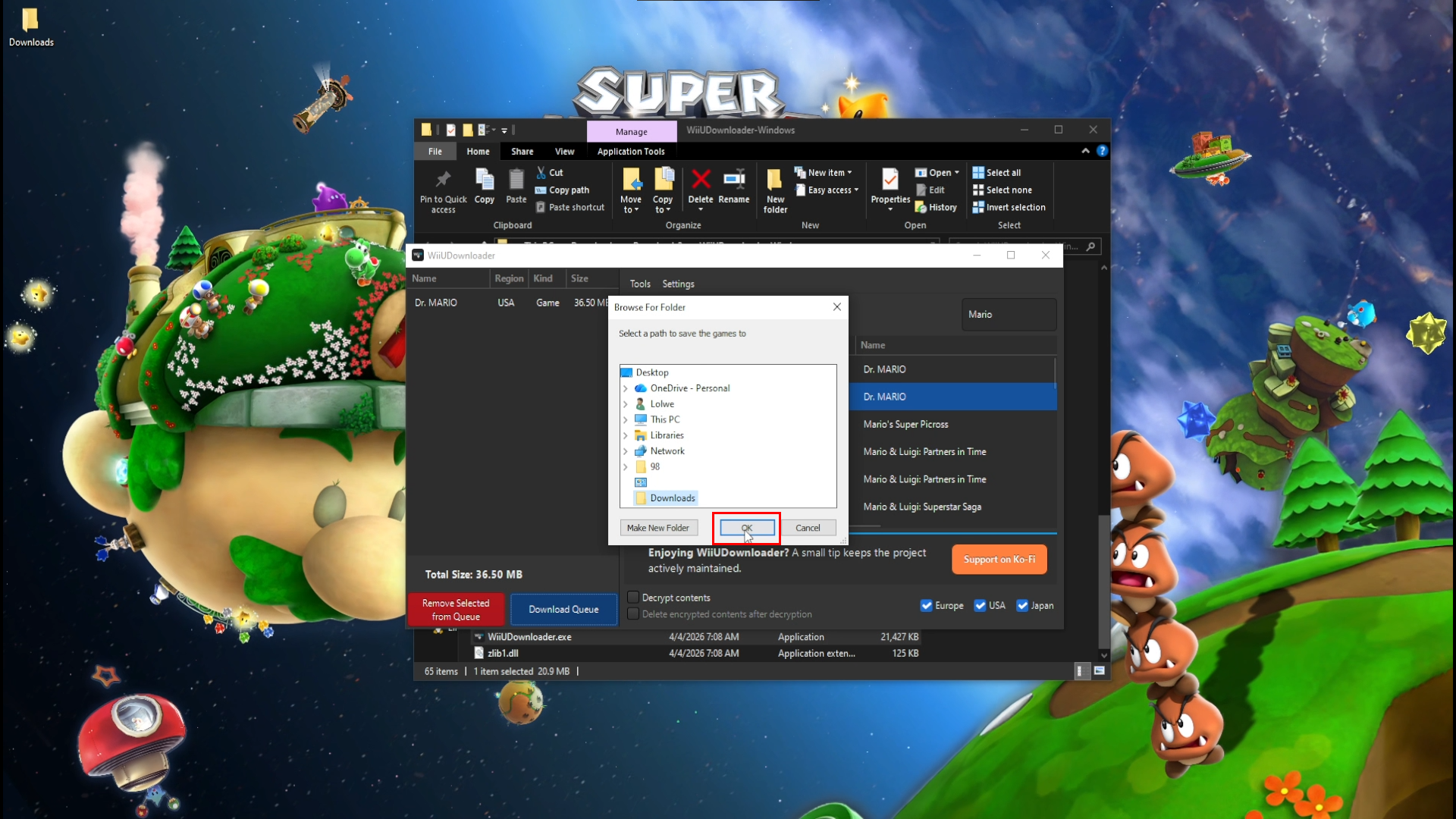
- The game will start downloading after this step.
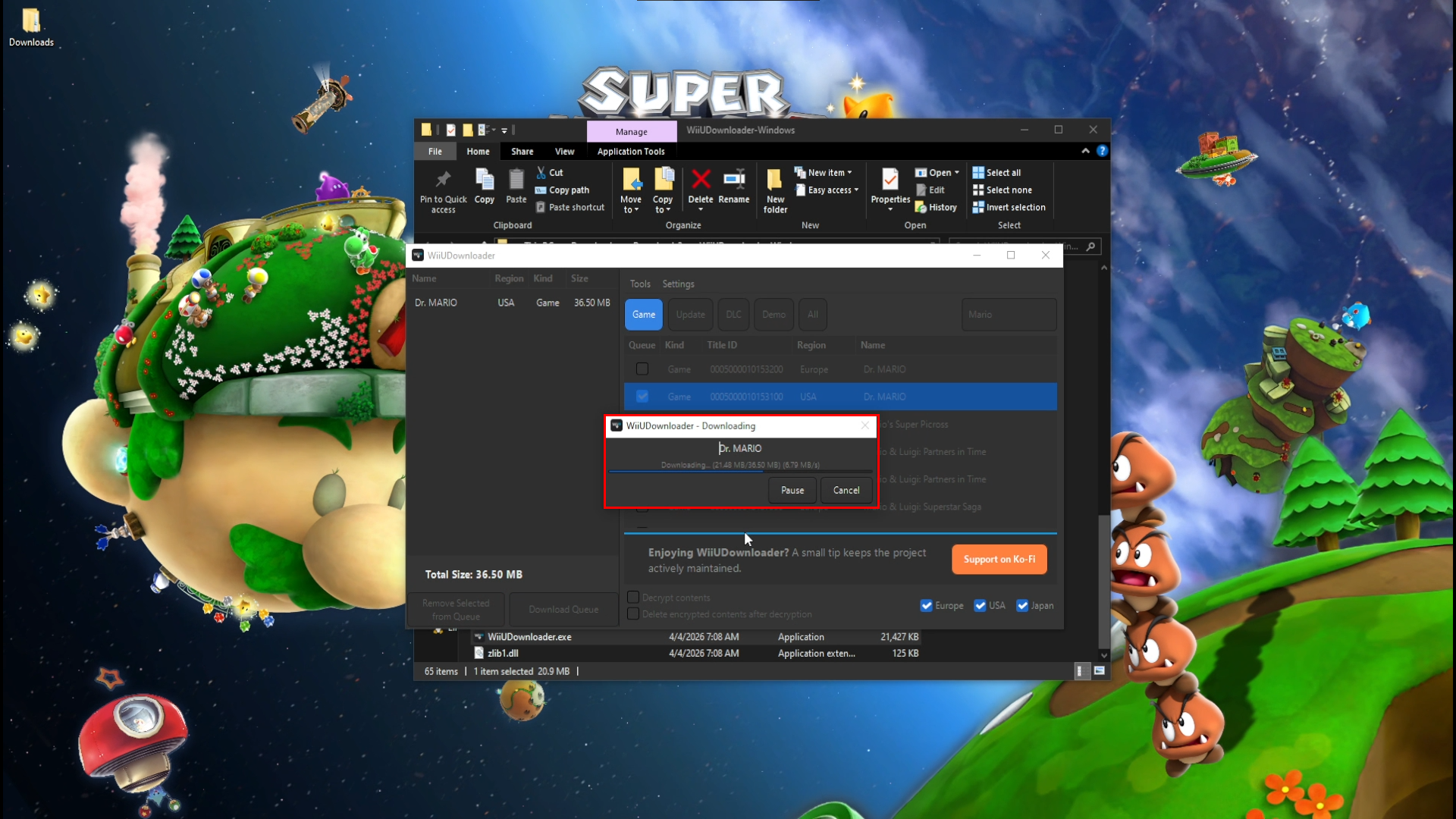
- The game will start downloading after this step.
-
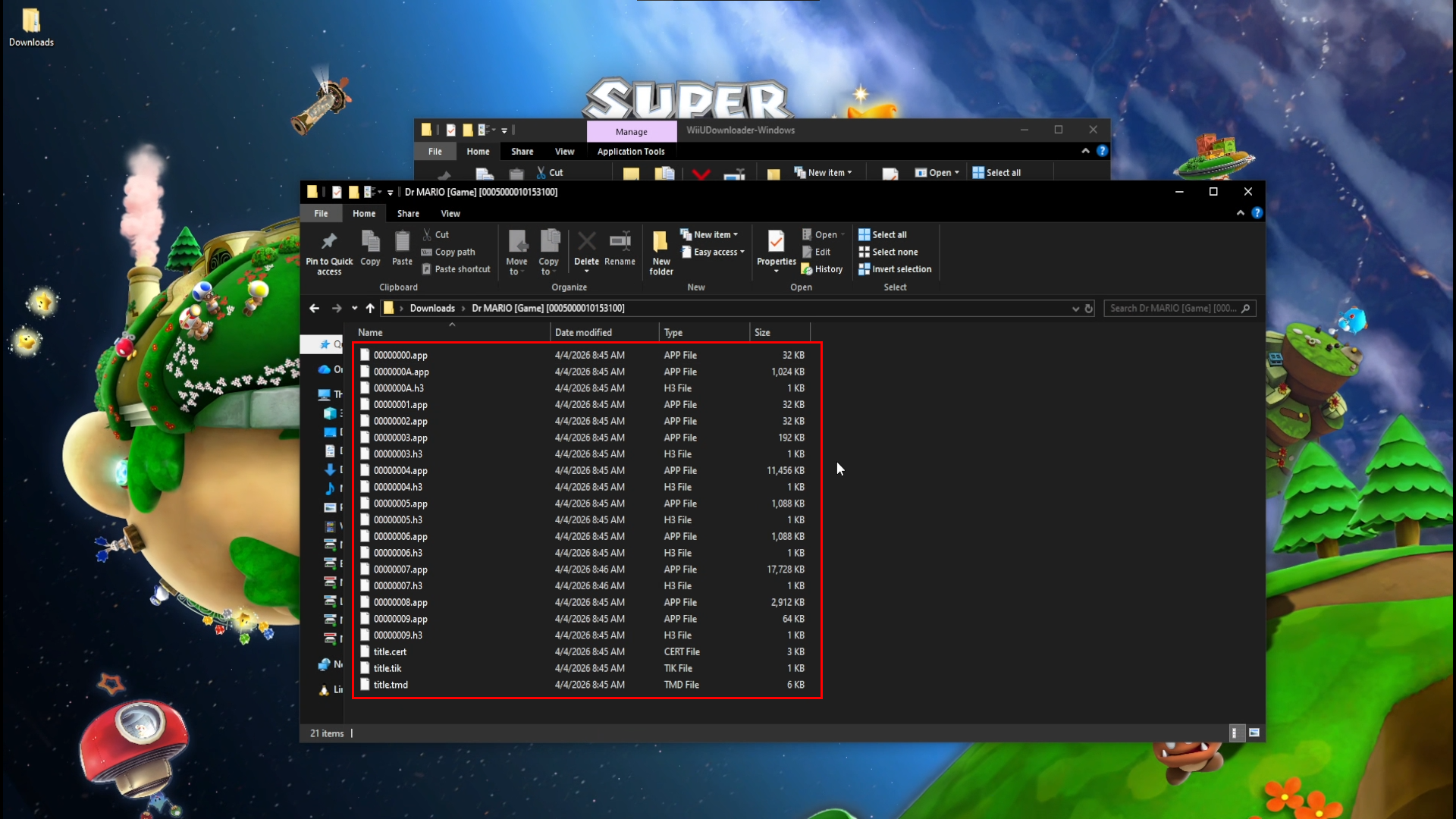
You should now have the encrypted game folder which will include .app, .h3, title.cert, title.tik, and tile.tmd files inside the folder.
Installing games to real hardware (Wii U)
- Insert your SD card and create a folder named
installon the root.- Right click on empty space on the root of the SD card, hover over "New", then click "Folder"
- Next, right click the new folder, select "Rename" then change the name to "install"
- Move the downloaded game folder(s) to the
installfolder.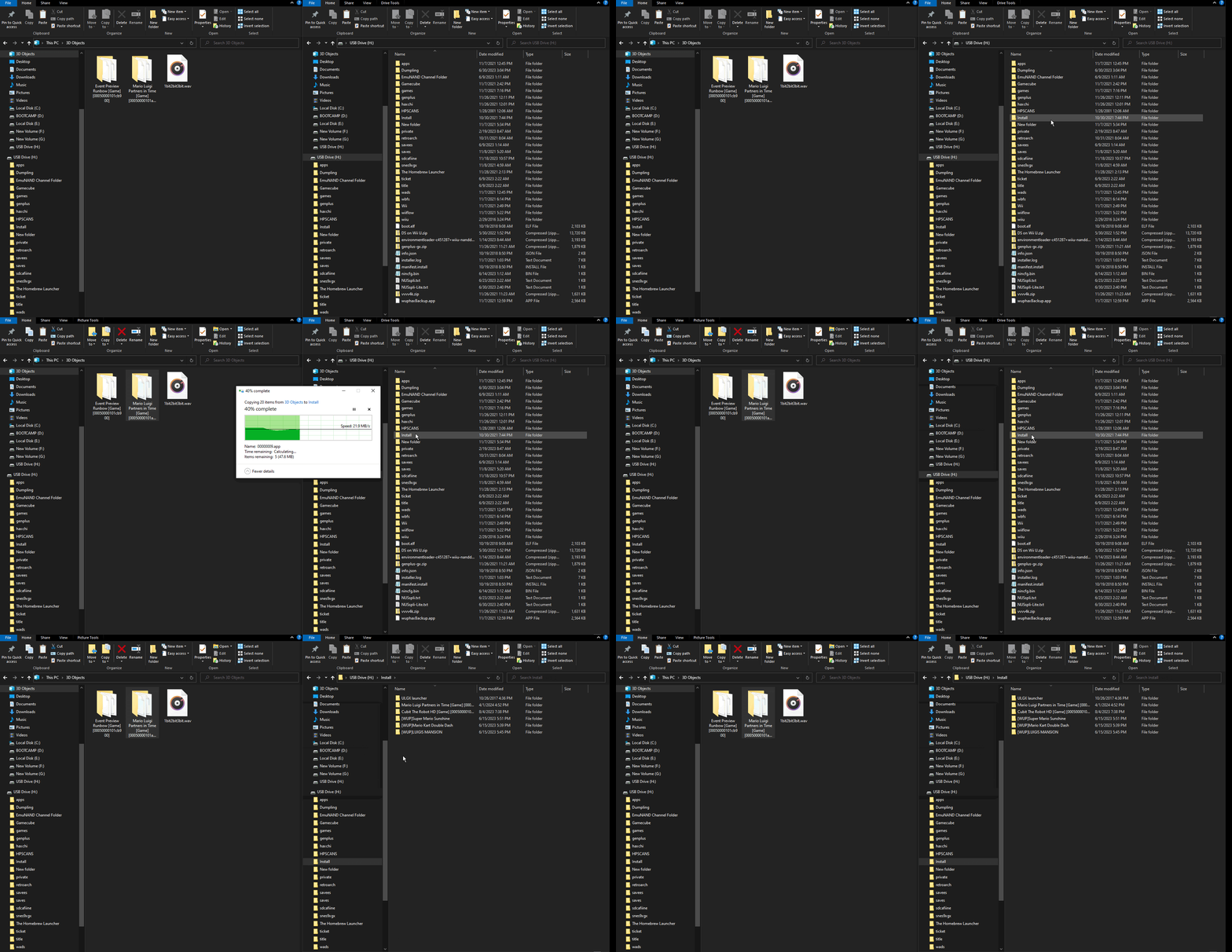
- Eject your SD card and put it into the Wii U.
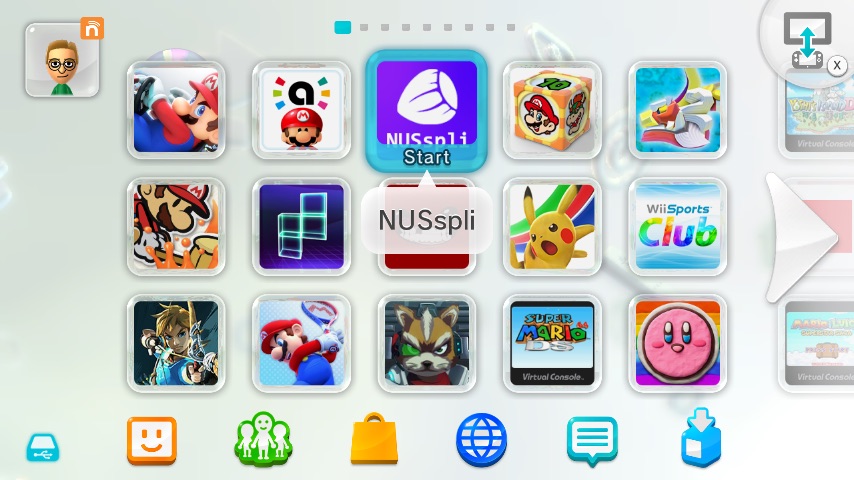
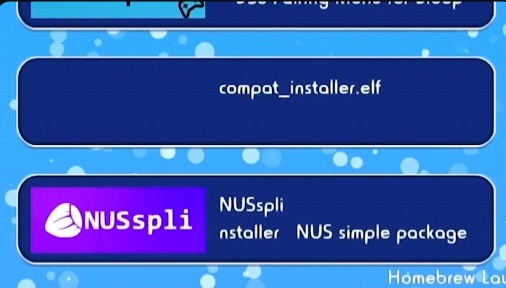
- Turn on the Wii U and open NUSspli.
- For Aroma, it will be on the Home screen.
- For Tiramisu, open Mii Maker or the Homebrew Launcher.
- For Aroma, it will be on the Home screen.
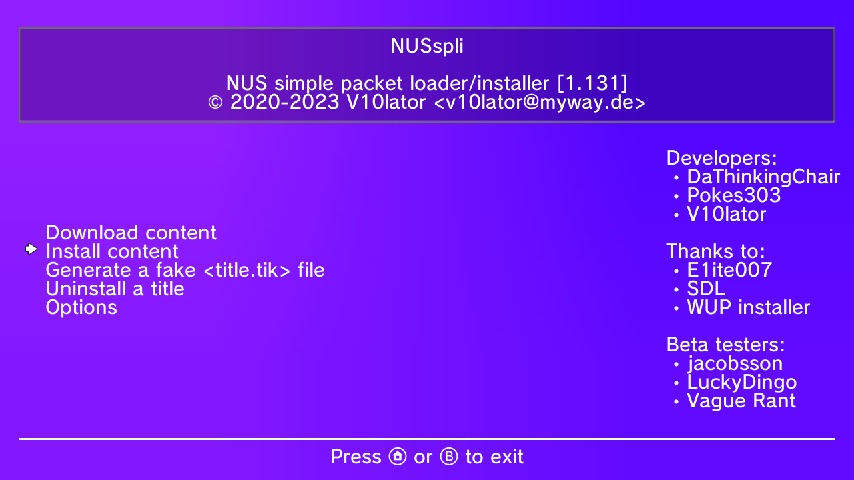
- Once open, press (A) on Install Content.
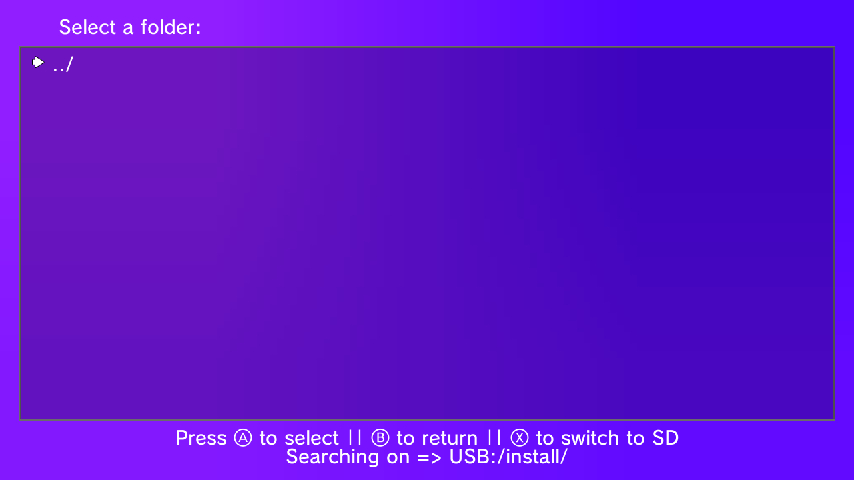
 Empty Directory?
If you see an empty screen, press (X) to switch to the correct directory (SD Card).
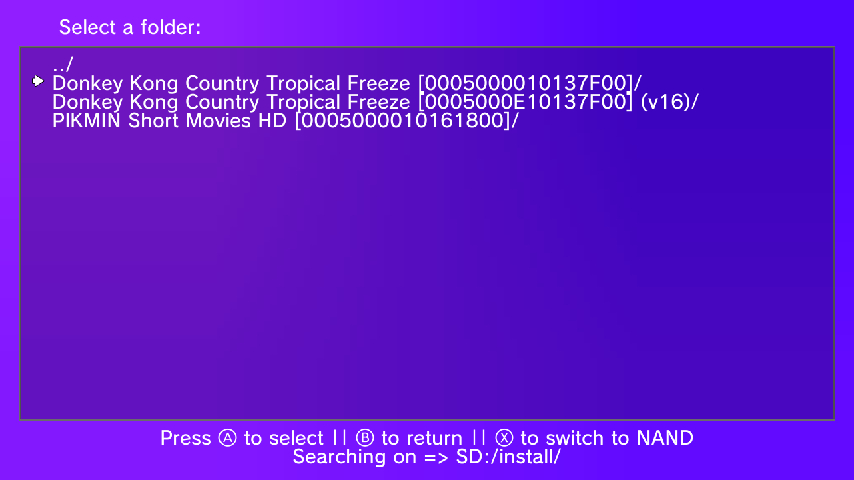
- Select the game you want using the D-Pad or Left Stick and press (A).
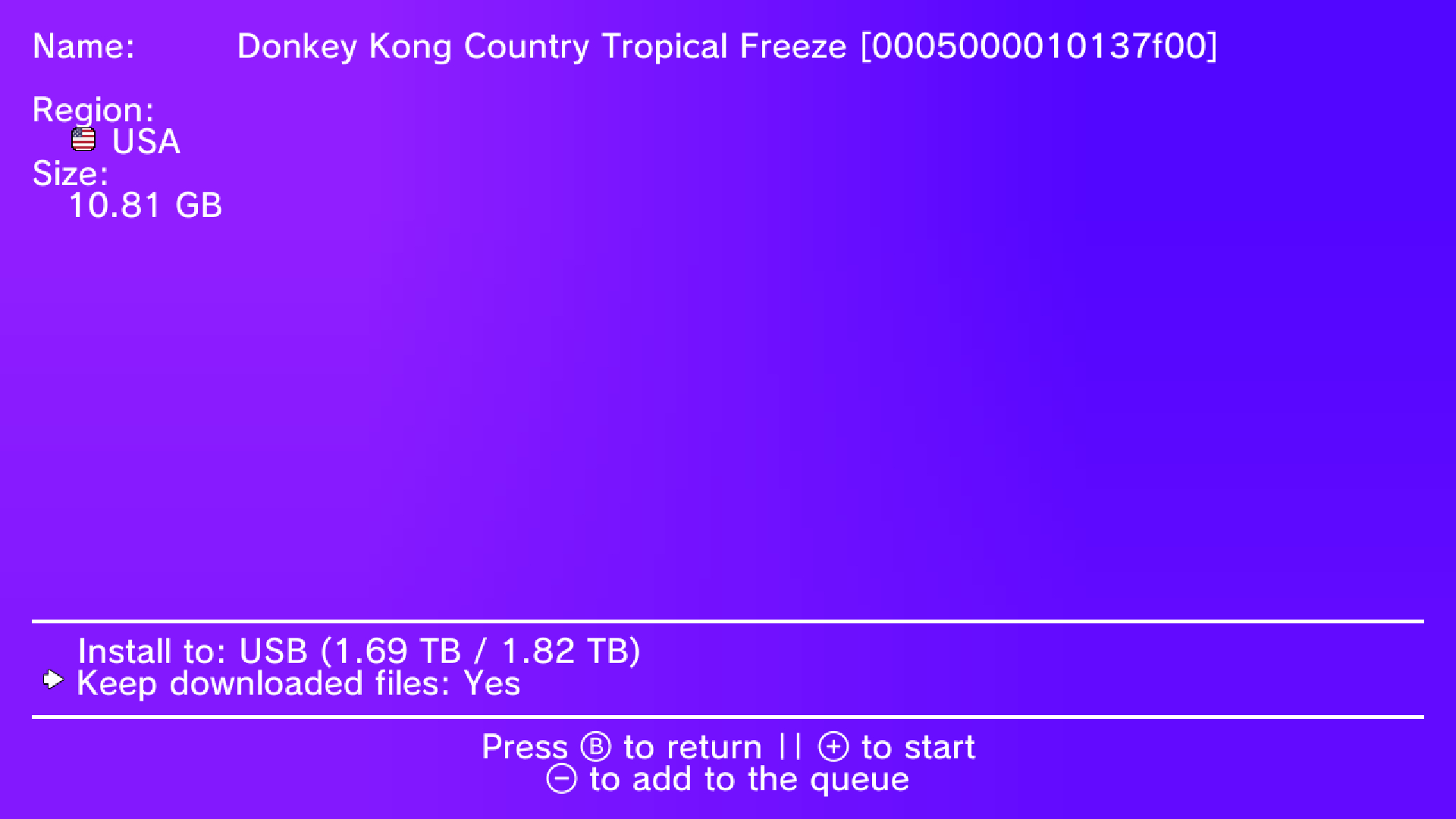
- Make sure to Install to USB by clicking (A) on the "Install to:" prompt.
 Queueing Multiple Games
Press (-) to add a game to the queue. Repeat for all games, then press (+) to start the installation.
NAND InstallationYou can install to NAND at your OWN RISK if you don't have a USB drive. Hynix NANDs in particular are prone to corrupting from installations and game writes.
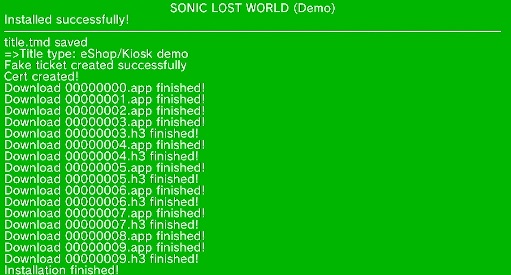
- Once finished, you'll see a green "Installed successfully" screen. Press the Home button to exit.
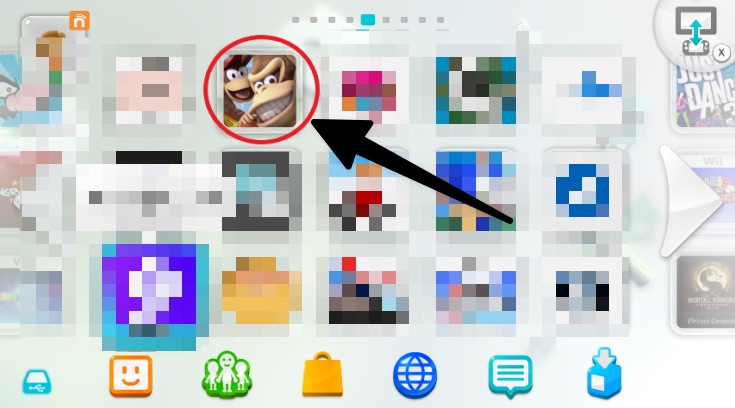
- The game will now be on your Wii U Home screen.
If the game doesn't open, you may need to install sigpatches.
- Shut down the console and put the SD card in your computer.
- Download
01_sigpatches.rpxfrom here. - Place the file in:
- Aroma:
wiiu/environments/aroma/modules/setup/ - Tiramisu:
wiiu/environments/tiramisu/modules/setup/
- Aroma:
- Put the SD card back in the console. The game should now work.
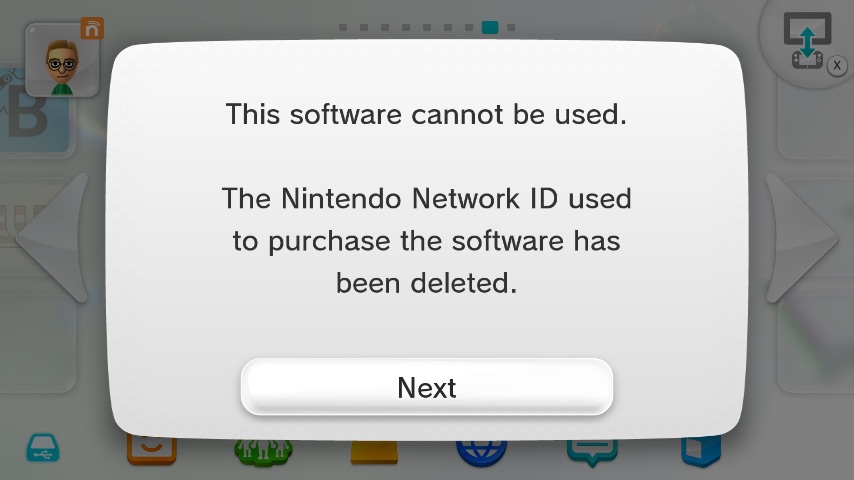
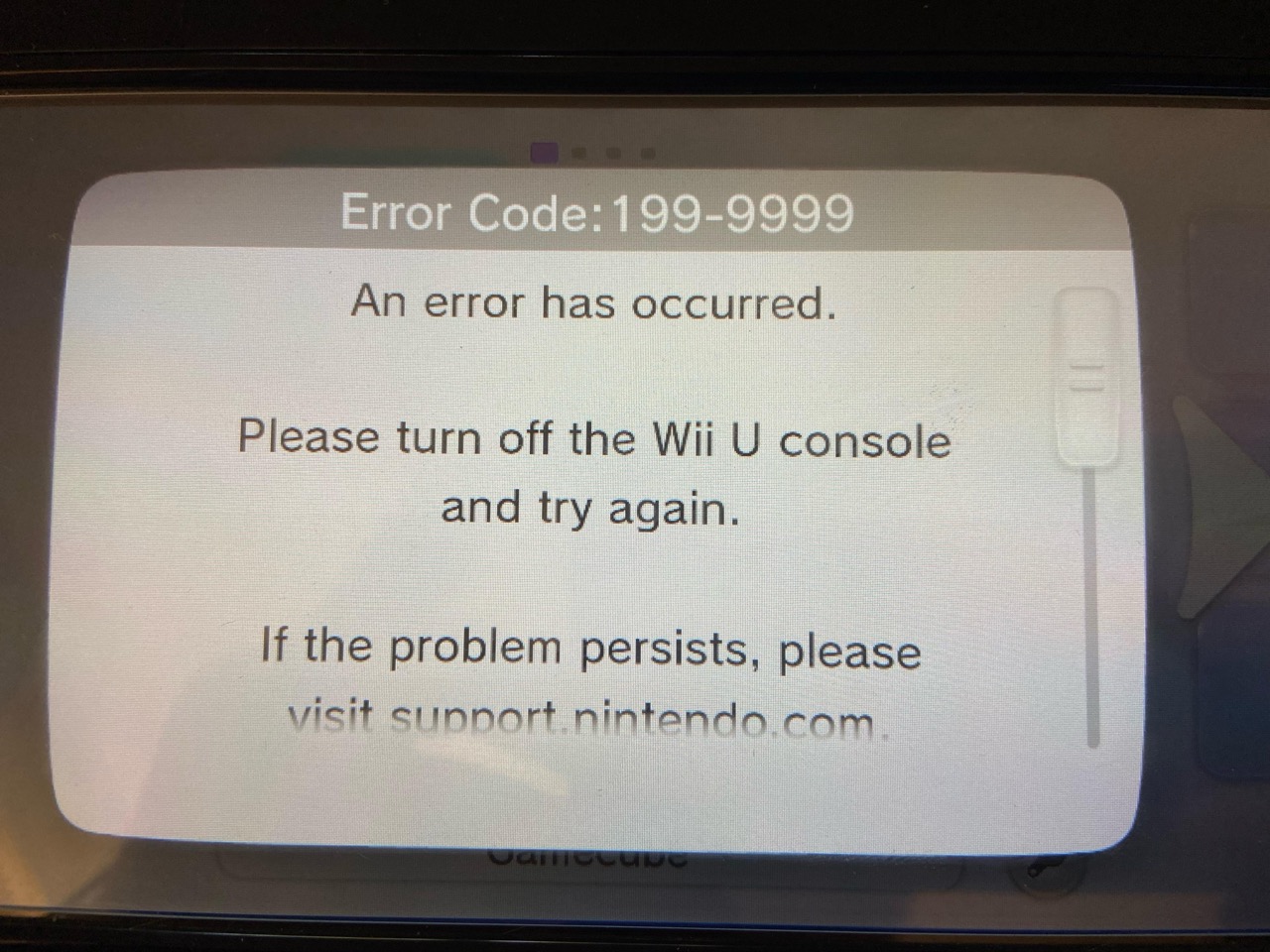
You have completed installing your favorite games on the Wii U. Congratulations! You can now safely delete the files from the install folder on your SD card.