WiiUDownloader for Cemu
Downloading for Cemu
Video Guide
-
Only have the Cemu box checked during setup.
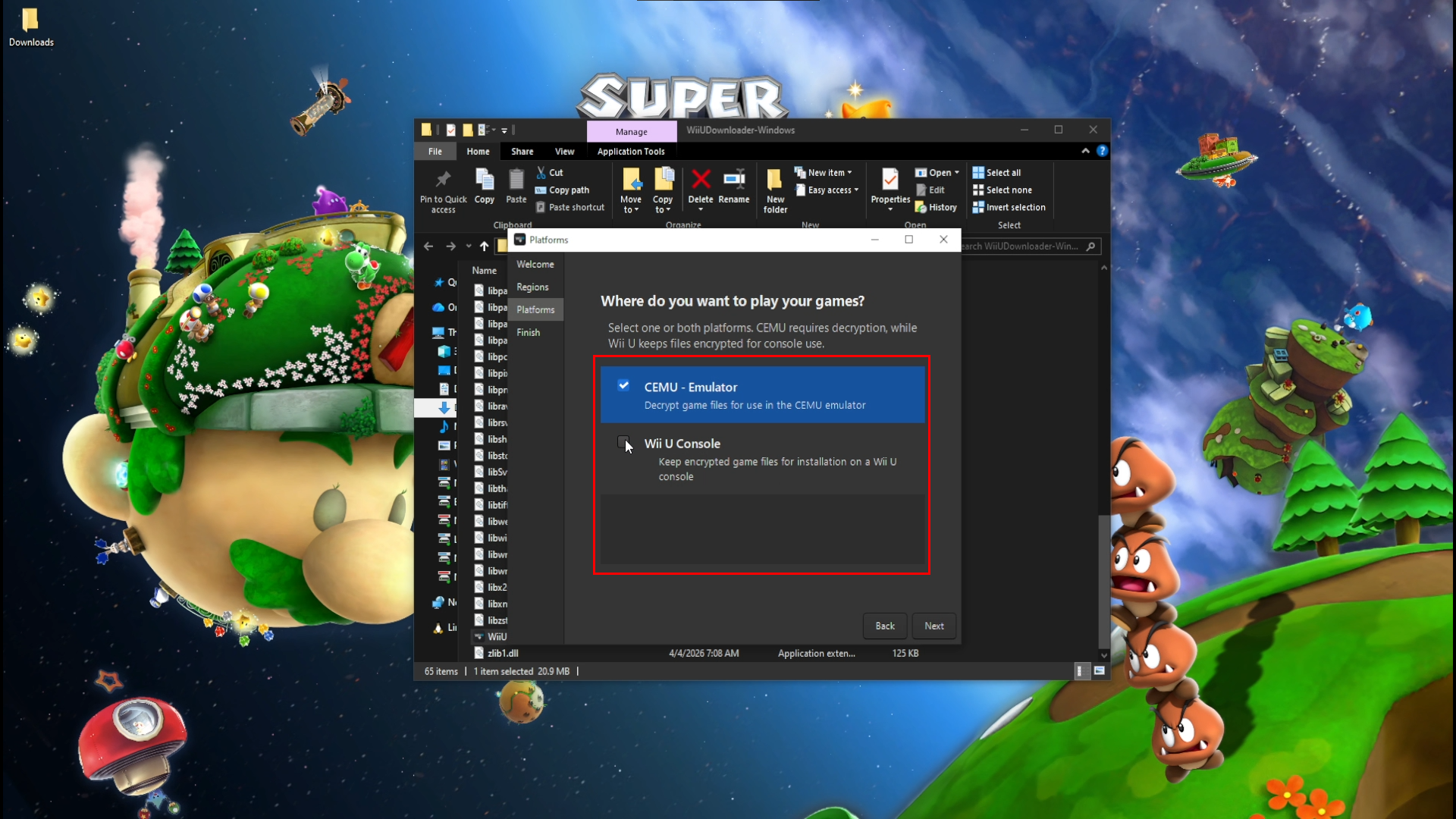 info
infoIf you forgot what you picked for the platform box, here are the settings you need to edit for Decrypt Contents and Delete encrypted contents after decryption.
- Cemu Only: Check Decrypt Contents and Delete encrypted contents after decryption.

- WiiU and Cemu: Only check the Decrypt Contents box. Do NOT check Delete encrypted contents after decryption.

-
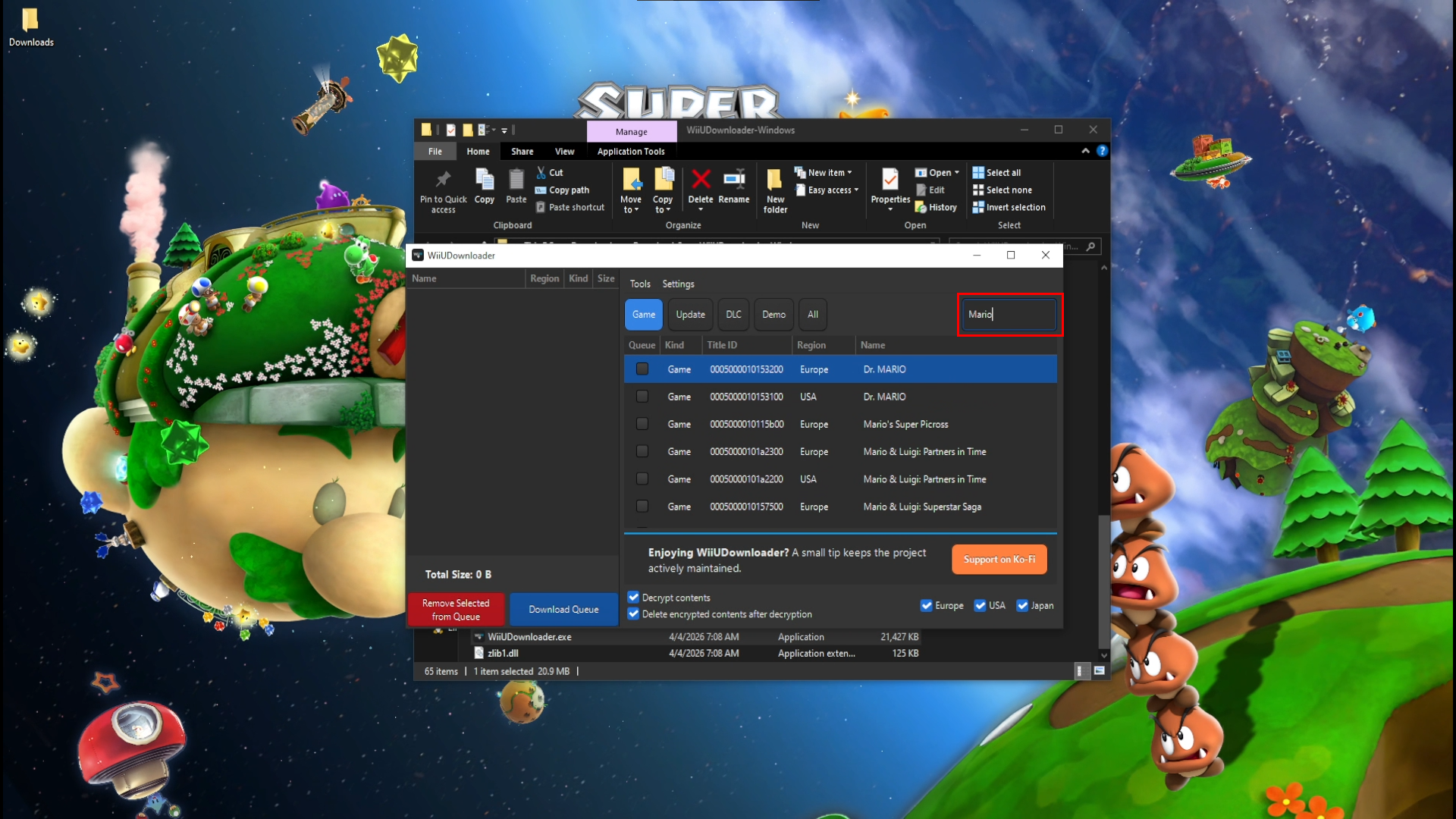
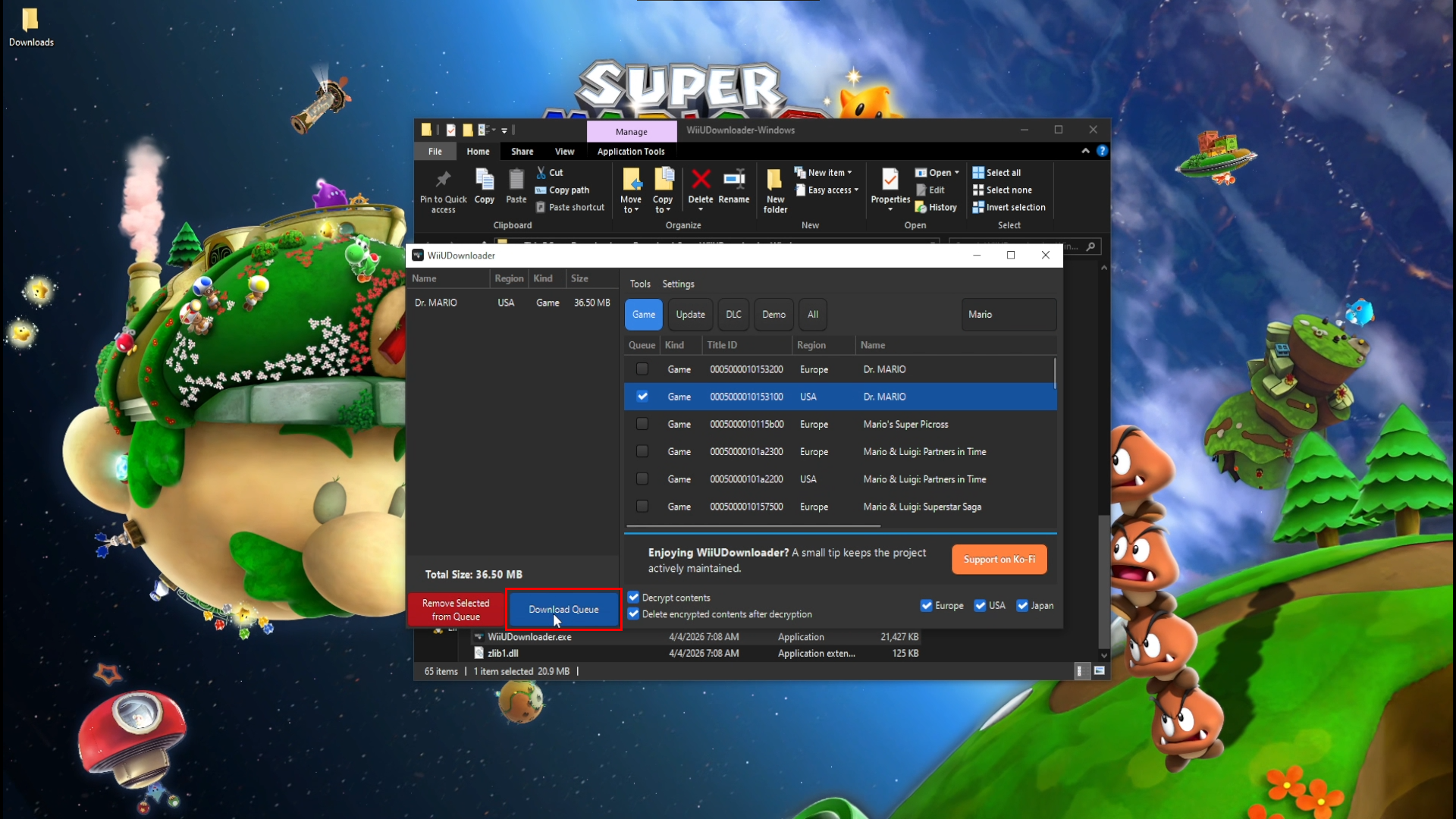
Search for the game(s) you want.
-
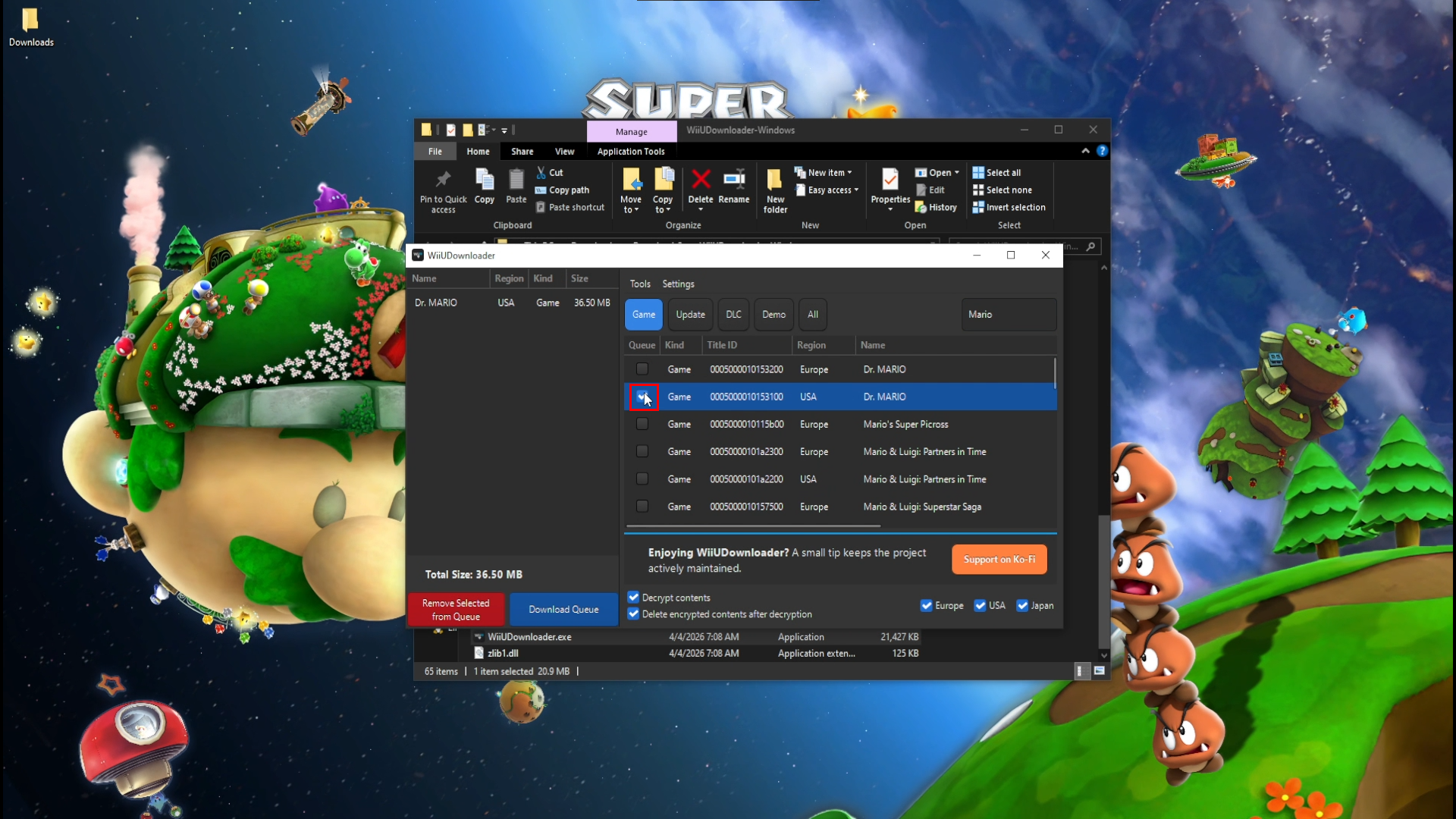
Check the checkmark box on the game(s) you want to add to the download queue
-
Press Download Queue.
-
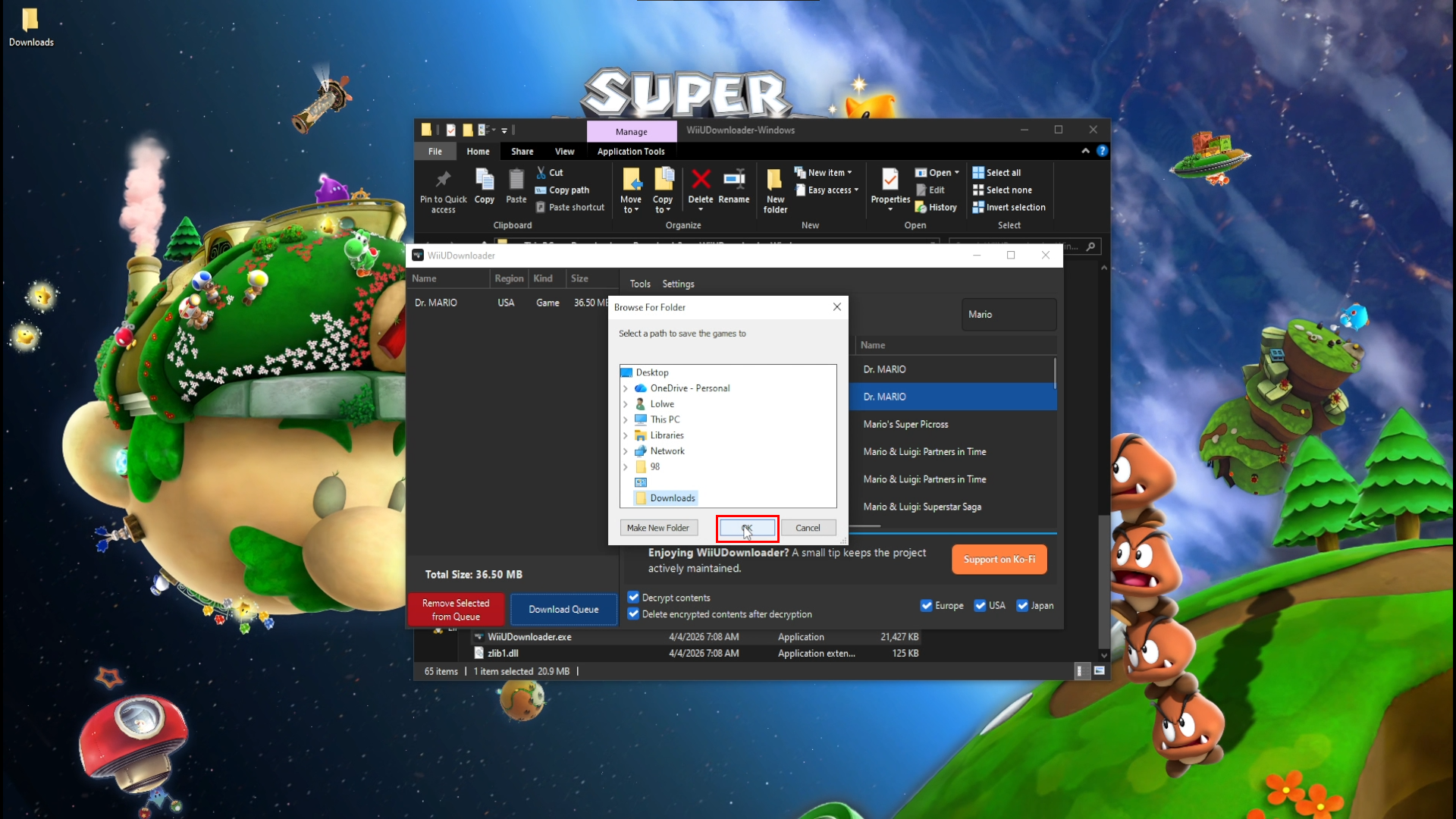
Choose where you want to save the files and click OK.
- The game will start downloading after this step.
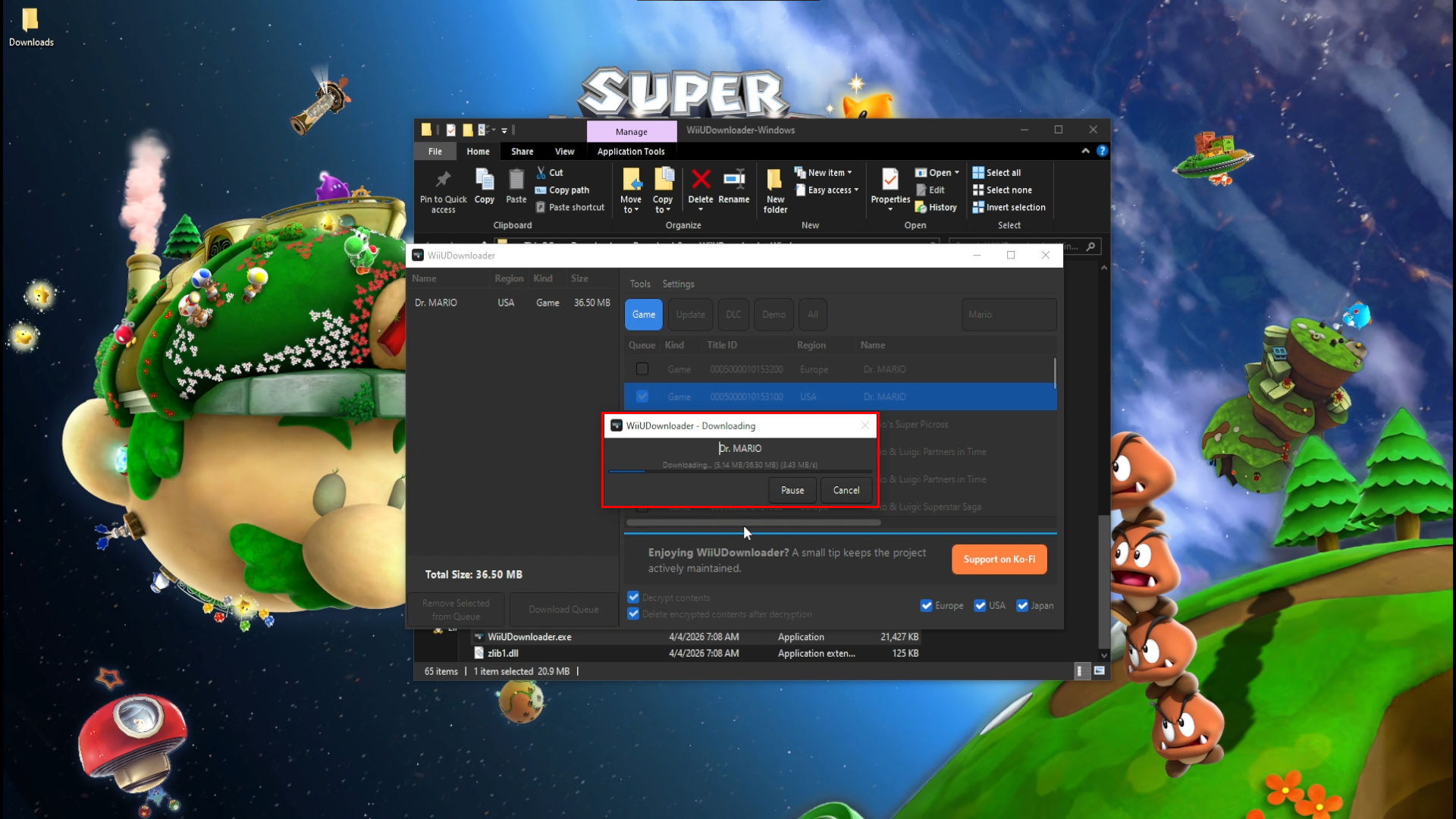
- The game will start downloading after this step.
-
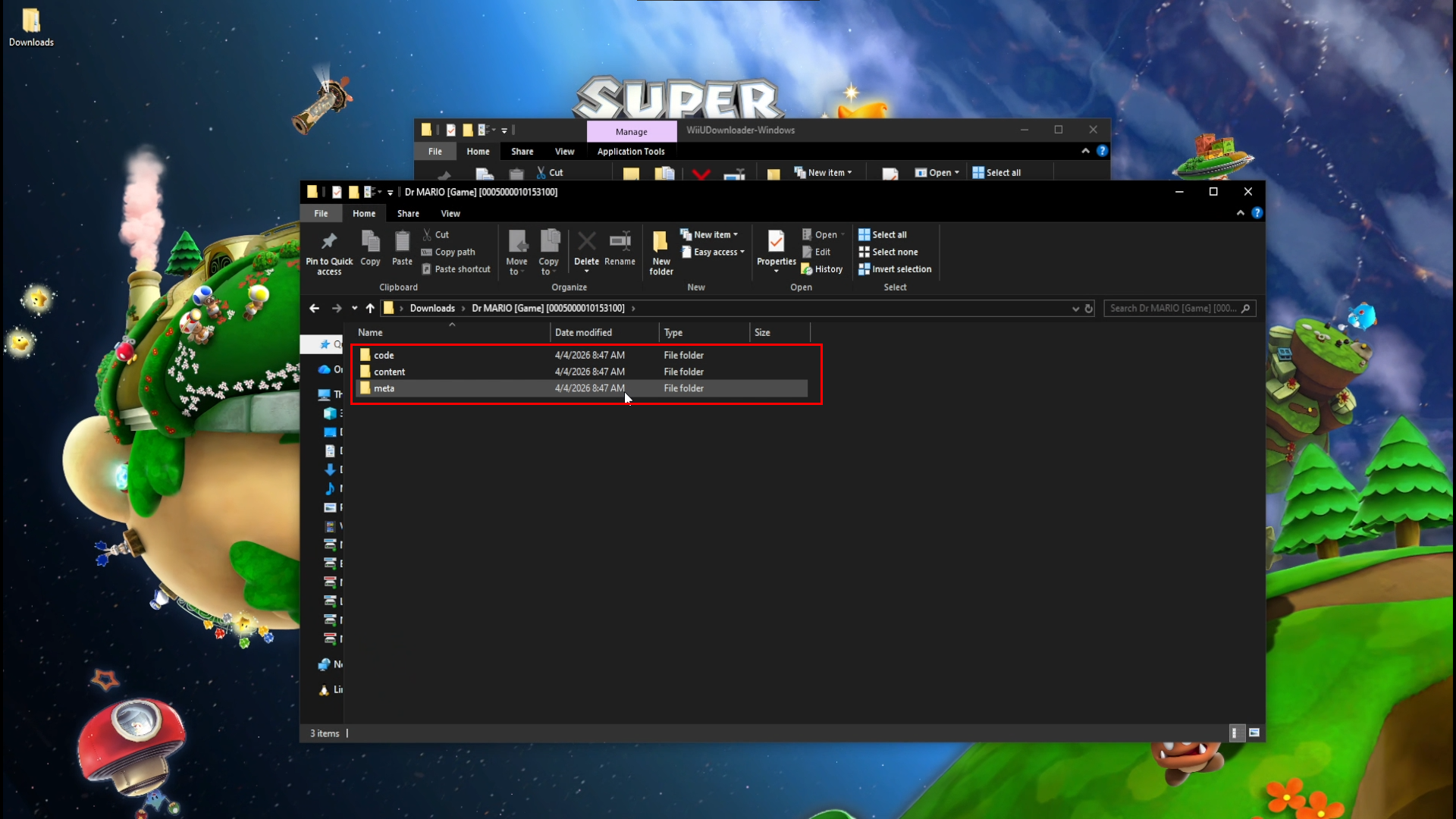
You should now have 3 folders named code content and meta
tip
If you downloaded the game already and forgot to unpack it, go to Tools on the top left, then click "Decrypt Contents" then select the folder.

CRITICAL STEP
- You MUST check the Decrypt Contents box, or the files will be UNUSABLE by Cemu.
- "Delete encrypted contents after decryption" is optional. Use it if you only use Cemu or are low on storage.
Installing to Cemu
Video Guide
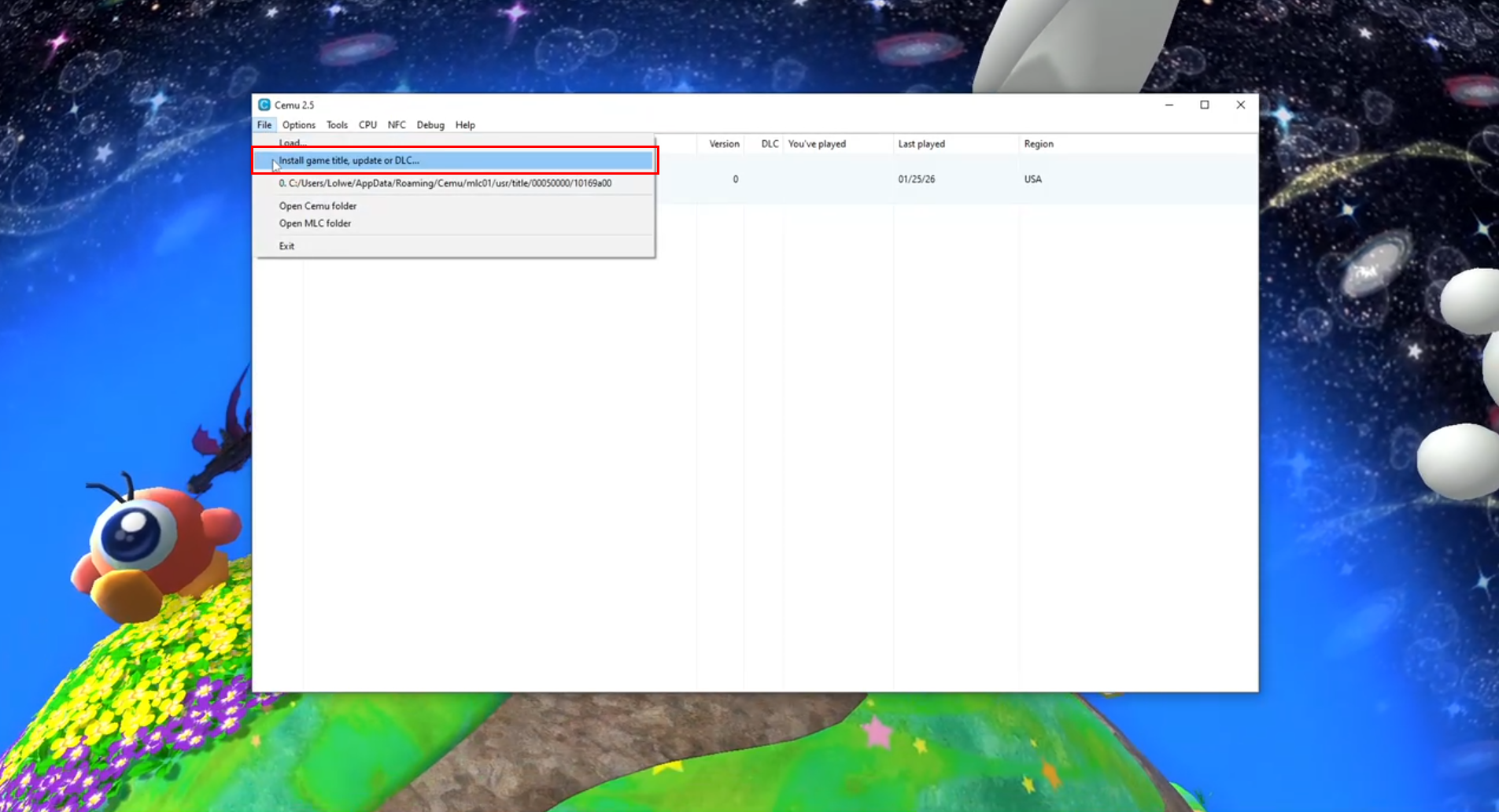
- Open Cemu.
- In the top left corner, click File → Install game title, update or DLC.
- Navigate to your downloaded game folder and select the
metafolder (ormeta.xmlfor older versions).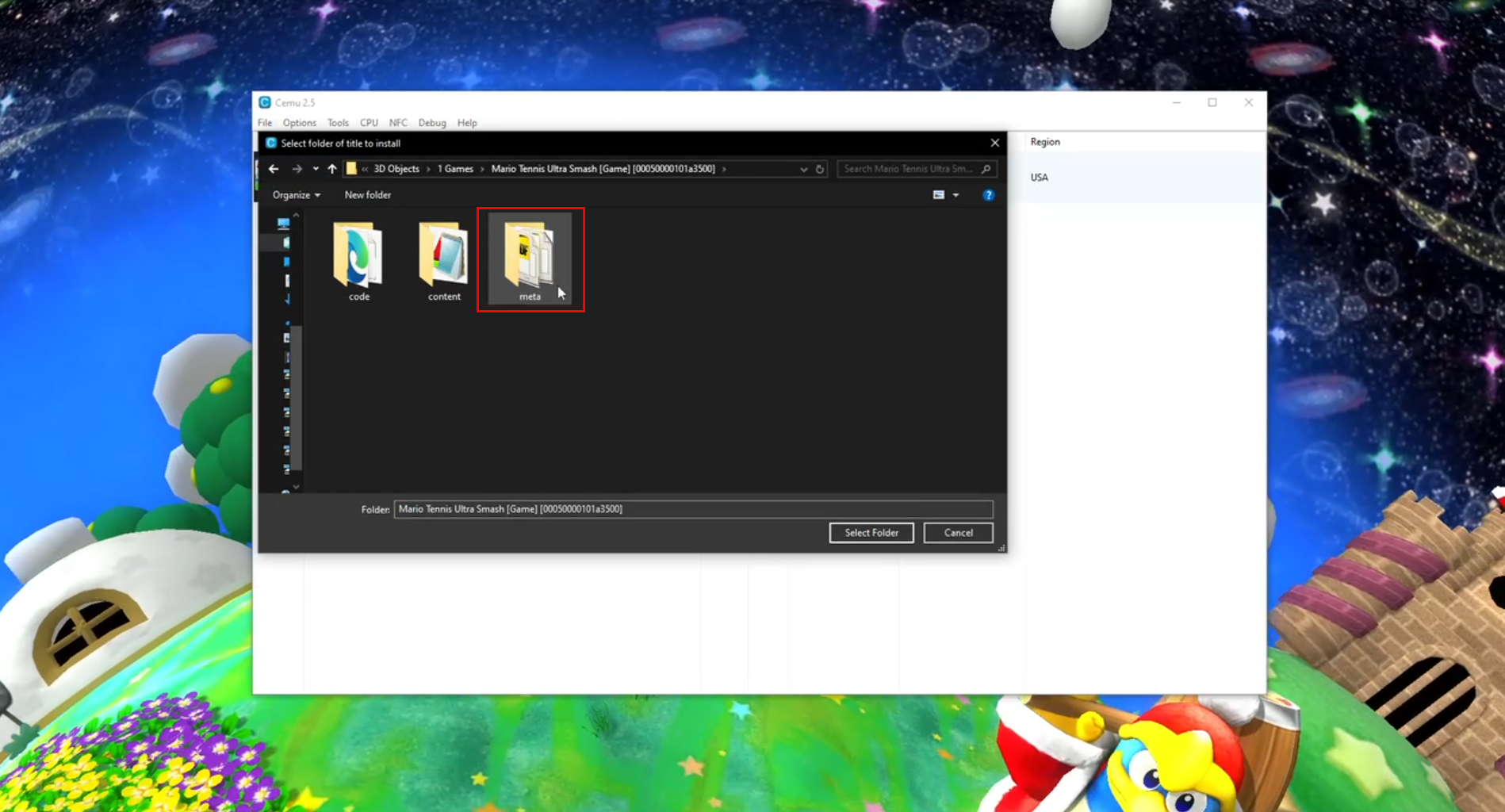
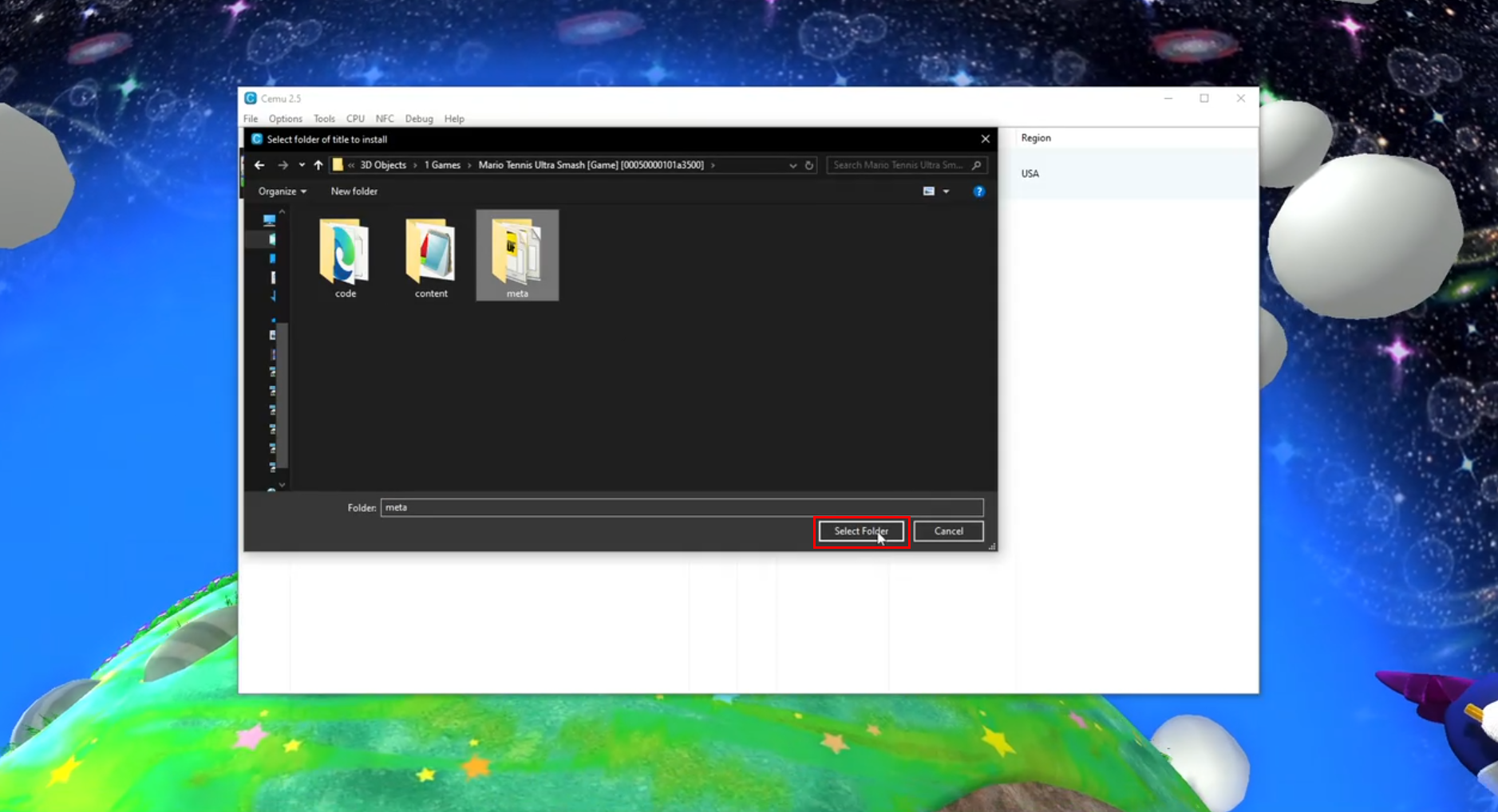
- Click Select Folder.
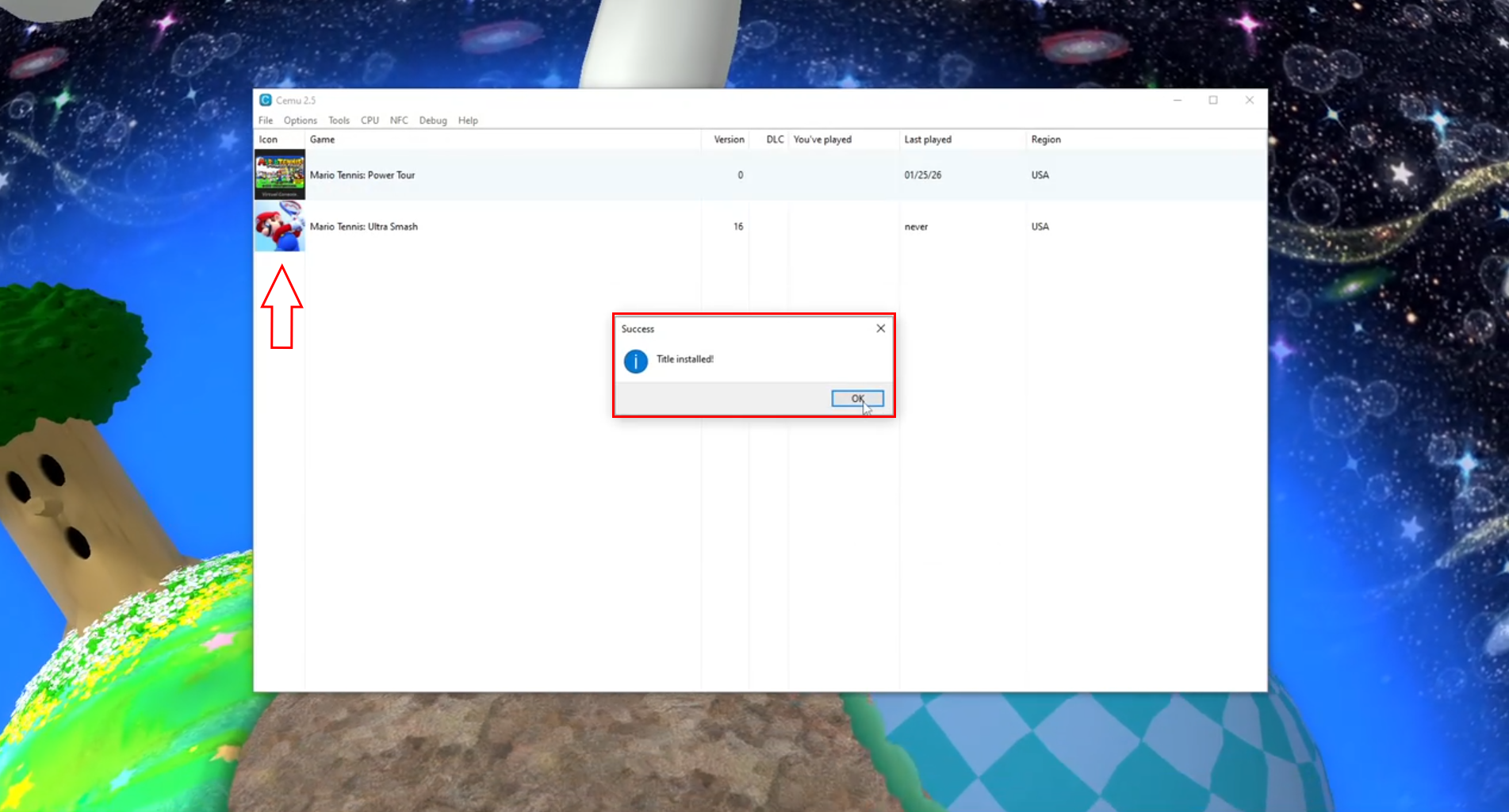
- Wait for the installation to complete.
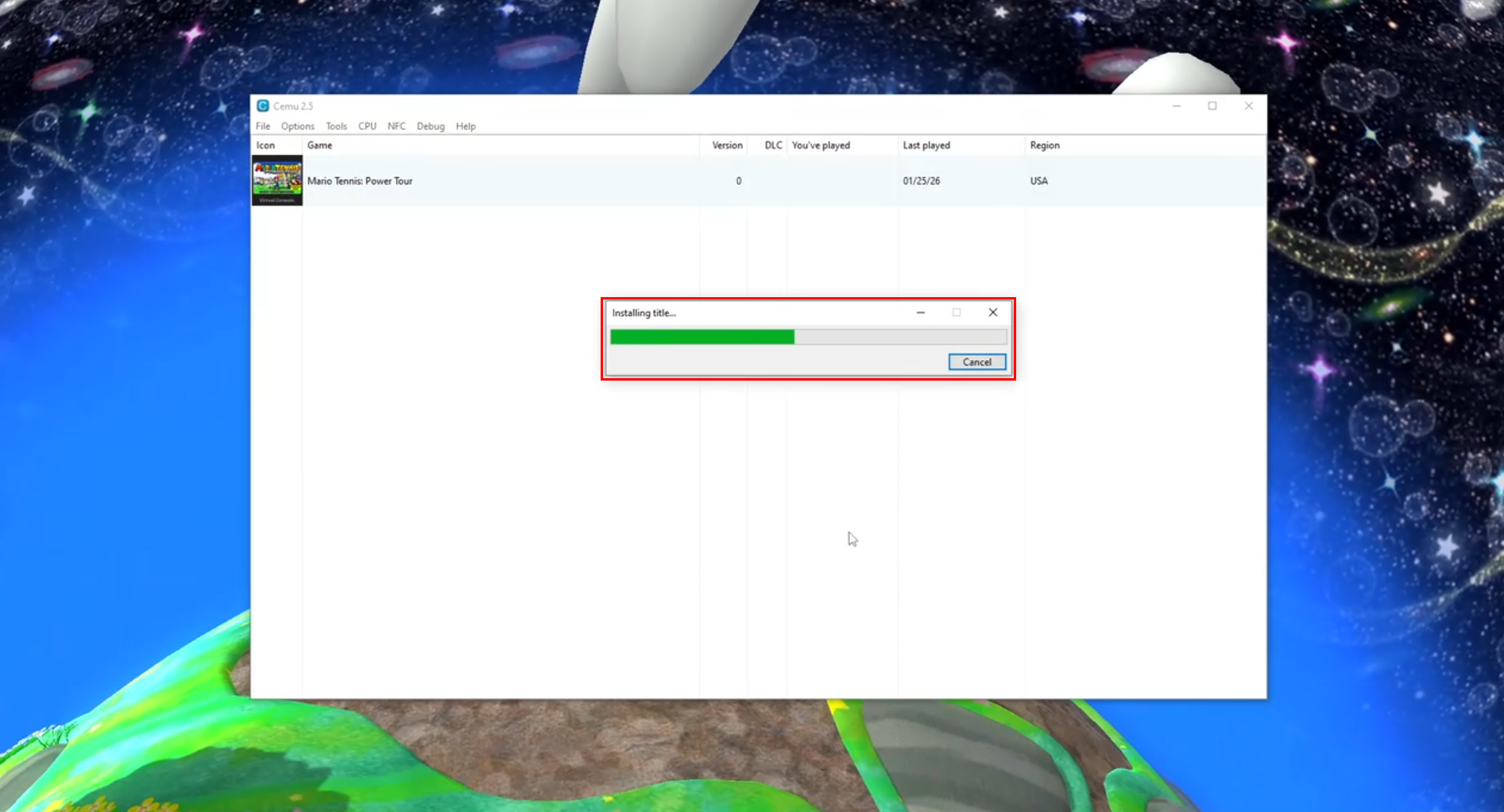
- You have successfully installed your favorite games on Cemu. Congratulations!